TRACK LAB / CIRCUIT MAKER
Track builder game for custom race circuits
ApexDrawn Track Lab is a track builder game for turning a sketch into a circuit you can drive. Use it as a circuit maker or race track creator: draw a loop, shape a rally stage, test the layout in 3D, then save it locally or export its data.
Last updated: November 11, 2026
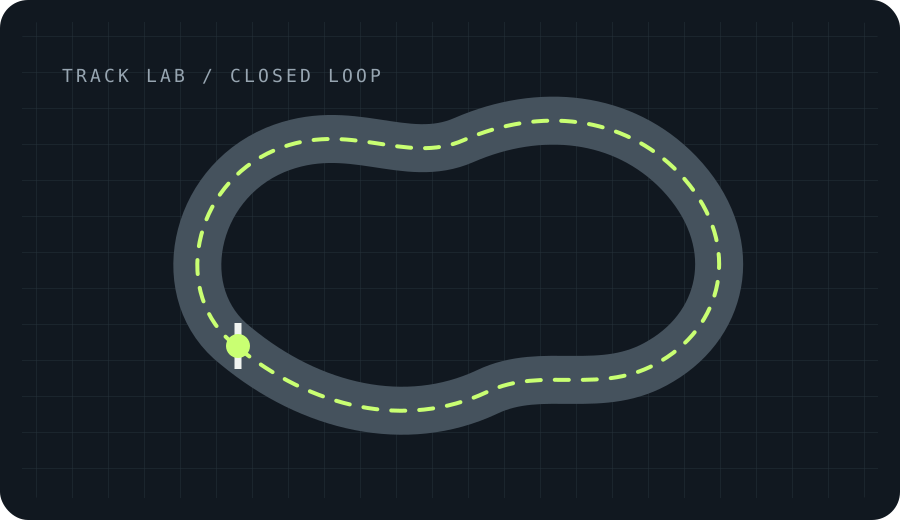
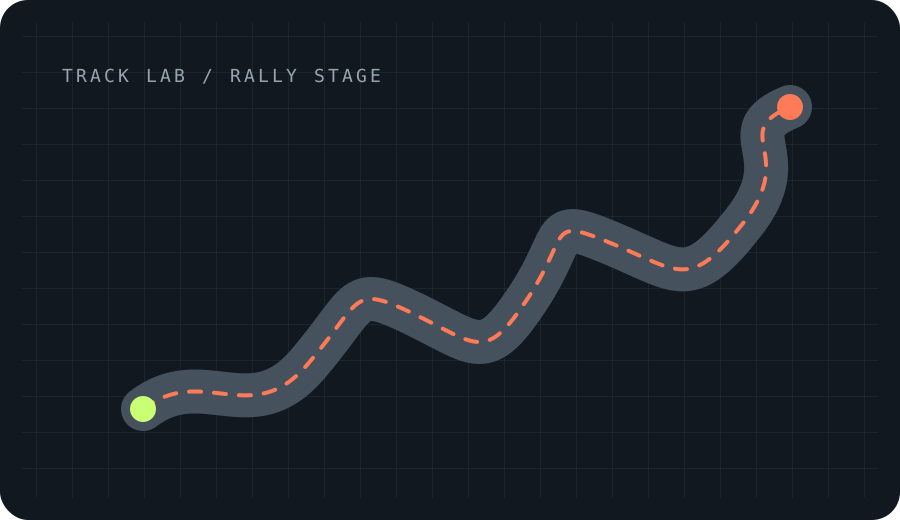
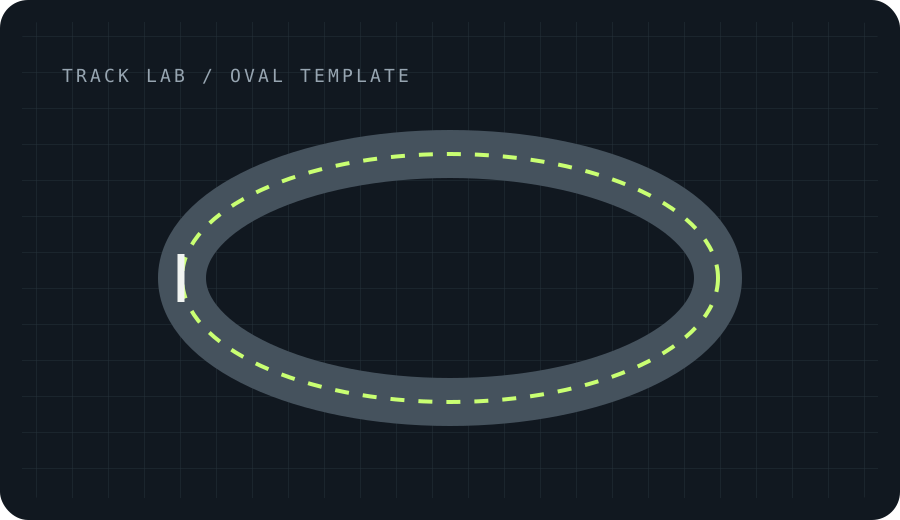
Draw a circuit or point-to-point stage
Choose a circuit or rally stage, then sketch a closed loop freehand or place points around the route. You can start from a blank board, load a saved drawing or select an available reference circuit. The board shows a top-down layout as you draw, so you can revise the shape before taking it out for a test drive.
Shape the road and test your layout
Adjust the average road width and terrain variation, or use a local shape template such as Grand Prix, Flowing, Technical, Street, Oval or Kart. Use Test Drive to try the selected line in 3D. Track length and corner figures in the editor are estimates; route geometry is illustrative, so treat them as guide values rather than surveyed measurements.
Save a track on this device
Save a finished drawing to this browser without an account, or export its track data as a JSON file. You can also load a picture as a private tracing guide; it stays on your device and is not uploaded. Local saves are tied to this browser, so use Export JSON if you want a separate copy of a layout.
Choose a route shape before you draw
Track Lab supports a closed circuit and a point-to-point rally stage, so decide whether you want to practise repeated laps or travel from a start toward a finish. Freehand drawing lets you sketch a flowing outline with a mouse or finger; point placement gives more control over where each bend begins. Start with a shape that leaves room between turns, then make it more technical after a first test. The board is a top-down design surface, not a map of a real venue. Existing reference circuits and locally saved drawings can be selected from the track picker, which gives you a starting point without changing the original layout.
Adjust width and terrain with clear expectations
The road-width control changes the average width of the custom route, and the terrain control adds a visual height variation to the preview. Local shape presets can help you begin with a broad oval, a flowing loop, or a more technical outline. These controls are intended for experimentation: the displayed length, corner count, gradient, elevation, and radius are estimates from the drawing, not surveyed measurements. Treat them as a way to compare two versions of your own design rather than as construction data. If a narrow section feels difficult in the drive, return to the board, widen that portion, or smooth the adjacent turns and test again.
Use a test drive to improve one change at a time
After drawing a route, choose Test Drive to see how it feels in the 3D game. Notice whether corners follow a clear sequence, whether a straight gives you time to prepare, and whether the route remains readable at speed. Change one feature at a time—such as the width, terrain variation, or the placement of a bend—then test the revised version. This makes it easier to connect a driving result with the edit that caused it. A route preview is illustrative and does not promise that a design will match a real circuit or behave like professional simulation software. You can also save a version before experimenting so you have a reference to return to.
Keep a local copy or export the route data
Save stores a drawing in the current browser on this device, so a local track is convenient to reopen here but does not automatically follow you to another browser or computer. Export JSON creates a separate data file that you can keep as a backup or import later where supported. A tracing image is selected from your own device and remains local according to the page description; remove it when you finish if you no longer need the reference. Use a descriptive filename when saving exports so you can tell a loop from a rally stage. If you clear site data or change devices, a previously saved local drawing may not be available unless you exported a copy.
Turn an idea into a route you can evaluate
A useful custom circuit begins with a shape you can explain: where the start sits, which direction the first turn goes, and how the route returns to its beginning. Give each straight a purpose, such as a short reset between corners or room to prepare for a tighter section. When a drawing looks tangled from above, simplify it before adding more bends. Test Drive lets you judge the route from the driver's view, while the board helps you see the whole layout. Move between those views as part of the design process. The point is to create a route that is enjoyable for you to test; the editor does not certify safety, construction feasibility, or real-world dimensions.
Frequently asked questions
Can I draw a track on a phone?
Yes. Track Lab accepts pointer input on its drawing board, so you can sketch with a mouse or touch screen. On a smaller display, use the visible controls and rotate to landscape if that gives the board more room. The final feel should still be checked in Test Drive.
Does the track builder cost anything?
The Track Lab drawing tools are available in the browser without a required account. Core access can change as the product develops, so read any current screen before using an optional digital item. A saved local route stays in this browser unless you export its JSON data.
Are the length and elevation measurements exact?
No. Length, corner count, gradient, elevation change, and radius are local estimates based on the illustrated route. They help compare your own versions, but they are not surveyed dimensions and should not be used as engineering or venue data.
Can I keep a track on another device?
A local save is tied to the browser on the current device. Use Export JSON to keep a separate copy, then move that file yourself. The page does not promise automatic cloud syncing or a shared public track library for these drawings.